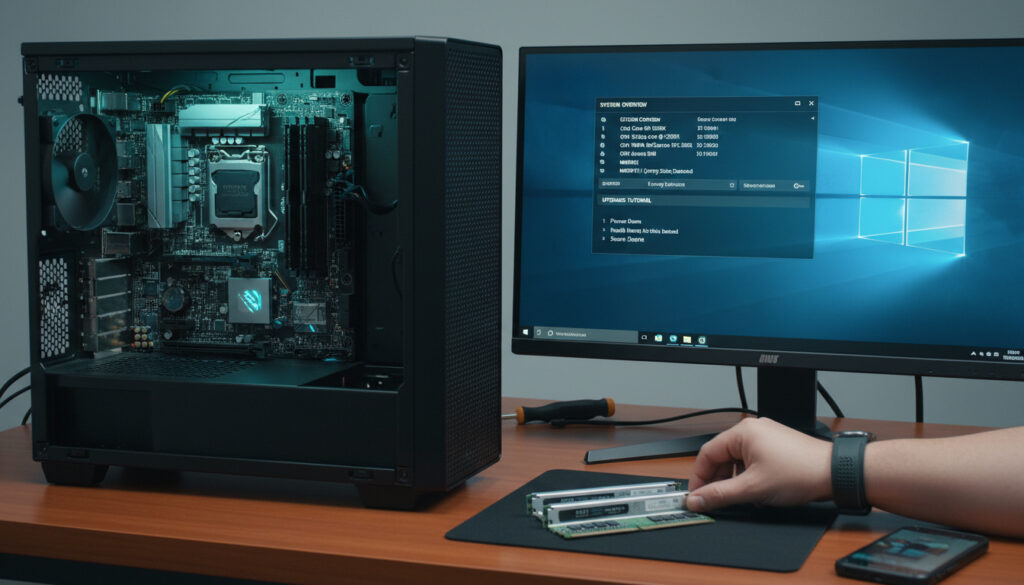
How to Check RAM Slots – Step-by-Step Windows Guide
Determining the number of available memory slots in your computer is essential before any RAM upgrade. Whether you are troubleshooting performance issues or planning to expand capacity, knowing how many slots are occupied and how many remain empty prevents compatibility headaches.
Modern systems offer multiple ways to inspect memory configuration without immediately reaching for a screwdriver. Windows provides built-in utilities that reveal slot occupancy, while third-party utilities offer granular detail about module specifications. For those requiring absolute certainty, physical inspection remains the definitive method.
Software-based detection methods for Windows, specialized diagnostic tools, and physical verification techniques for both desktop and laptop form factors are detailed below.
How to Check RAM Slots on Windows Using Built-in Tools
Windows operating systems include native utilities capable of reporting memory slot configuration without additional installations. These tools vary in granularity, from simple occupancy counts to detailed module specifications.
Task Manager
Best for immediate occupancy checks
- Pros: No installation, instant results
- Cons: Limited technical details
Command Prompt
Best for detailed specifications
- Pros: Comprehensive module data
- Cons: Requires command knowledge
System Information
Best for hardware overviews
- Pros: Built into Windows
- Cons: Does not always show empty slots
BIOS/UEFI
Best for pre-boot verification
- Pros: Hardware-native detection
- Cons: Interface varies by manufacturer
Consider the following when using Windows tools:
- Task Manager displays “Slots Used” on the Performance tab’s Memory section, showing both occupied and total slots.
- WMIC commands accessed via Command Prompt reveal capacity per module, memory type (DDR3, DDR4, DDR5), and form factor.
- Windows 8, 10, and 11 support Task Manager slot detection, while earlier versions require alternative methods.
- System Information (msinfo32) provides general memory totals but often lacks specific slot enumeration.
- Administrative privileges are required for WMIC queries to return complete data sets.
- Software detection identifies populated slots accurately but may not detect physically present but disabled slots.
| Method | Tools Required | Accuracy Level | Time Required |
|---|---|---|---|
| Task Manager | None | Medium | 30 seconds |
| WMIC Commands | Command Prompt | High | 2 minutes |
| System Information | None | Low-Medium | 1 minute |
| CPU-Z | Software download | High | 5 minutes |
| BIOS/UEFI | Restart access | Highest | 3-5 minutes |
| Physical Inspection (Desktop) | Screwdriver | Highest | 10-15 minutes |
| Physical Inspection (Laptop) | Screwdriver, pry tool | Highest | 15-30 minutes |
Using Third-Party Software Like CPU-Z to View RAM Slots
Specialized diagnostic utilities provide more comprehensive memory analysis than Windows native tools. CPU-Z remains the standard for enthusiasts and technicians requiring detailed module specifications.
CPU-Z Memory Tab Analysis
Upon launching CPU-Z, the Memory tab presents real-time information about type, size, frequency, delay, and cycle time. This view shows aggregate system memory characteristics rather than individual slot status. For slot-specific information, users must navigate to the SPD (Serial Presence Detect) tab.
SPD Tab Slot Detection
The SPD interface contains a dropdown menu listing available memory slots. Selecting each slot entry reveals whether it contains a module or remains empty. Occupied slots display manufacturer details, part numbers, and timing specifications. Documentation confirms this method accurately distinguishes between populated and vacant slots.
When using CPU-Z, check every slot in the SPD dropdown menu sequentially. Some motherboards use non-consecutive slot numbering, so empty entries in the first two positions do not necessarily indicate a two-slot motherboard.
Alternative software solutions include Speccy and HWiNFO, which offer similar memory topology detection. These tools read the same SPD data but present it through different interface paradigms.
How to Physically Inspect RAM Slots on Desktop and Laptop
Software methods occasionally fail to detect hardware nuances, particularly when BIOS settings disable unused slots or when proprietary firmware masks hardware details. Physical inspection removes ambiguity.
Desktop Computer Inspection
Desktop towers provide relatively straightforward access. After powering down and disconnecting the power cable, remove the side panel to expose the motherboard. RAM modules install vertically in long slots typically located near the CPU socket. Visual inspection immediately reveals occupied slots containing modules with retention clips engaged and empty slots with open clips.
Laptop Access Considerations
Laptop designs vary significantly in accessibility. Some models feature dedicated memory access panels on the bottom chassis, requiring only the removal of one or two screws. Others demand complete disassembly, including keyboard removal and motherboard extraction, to reach SODIMM slots. Hardware videos demonstrate that certain ultrabooks solder memory directly to the motherboard, leaving no user-accessible slots.
Before touching internal components, ground yourself using an anti-static wrist strap or by touching bare metal on the power supply. Static discharge can damage memory modules and motherboard circuits.
How Many RAM Slots Does My Motherboard or Computer Have?
Determining total slot capacity requires understanding your specific hardware platform. Consumer desktops typically feature four DIMM slots arranged in dual-channel configurations, while compact desktops and laptops usually contain two SODIMM slots. High-end workstations may offer eight or more slots.
Model-specific documentation remains the authoritative source. Microsoft’s system information resources suggest cross-referencing software detection results with manufacturer specifications. When software reports four slots but the motherboard manual lists two, the manual takes precedence, as software may misinterpret chipset capabilities.
Many modern laptops, particularly thin-and-light models, ship with one accessible slot and one soldered memory chip. Software may report two slots, but only one is upgradeable. Consulting the service manual is essential before purchasing upgrade modules. For those looking to enhance their media experience, learning how to screen mirror iPhone to TV $screen mirror iPhone to TV can be a valuable skill.
For readers seeking reliable background verification services alongside technical upgrades, the Police Check Victoria – 2025 Application Guide provides relevant procedural information.
What Is the Step-by-Step Process for Checking RAM Slots?
- Initial Software Scan: Open Task Manager (Ctrl+Shift+Esc), navigate to Performance > Memory, and note the “Slots Used” indicator. Video tutorials confirm this works across Windows 8, 10, and 11.
- Detailed Specification Check: Run Command Prompt as administrator and execute
wmic memorychip get devicelocator, capacityto identify individual module sizes and locations. - Third-Party Verification: Download CPU-Z and examine the SPD tab to confirm which specific slots contain modules and which remain empty.
- Physical Verification: If upgrading, power down and open the case to visually confirm empty slots exist and are accessible.
What Information Can You Reliably Determine About RAM Slots?
Established Information
- Task Manager accurately reports occupied versus total slots on Windows 8/10/11
- WMIC commands provide exact capacity per installed module
- CPU-Z correctly identifies DDR generation and operating frequency
- Physical inspection confirms DIMM versus SODIMM form factors
- BIOS displays hardware-native slot configuration before OS boot
Uncertain or Variable Information
- Software may not detect slots disabled in BIOS
- Laptop slots hidden under keyboards or motherboards require disassembly
- Maximum memory capacity per slot often requires manual spec sheet review
- Proprietary enterprise systems may report generic slot counts
- Virtual machines report virtualized rather than physical hardware
Why Does Slot Configuration Affect Upgrade Decisions?
Understanding slot topology prevents costly purchasing errors. A system with two occupied slots out of two total requires replacing existing modules rather than adding new ones, significantly impacting upgrade costs. Conversely, a desktop with four slots and two occupied modules allows capacity doubling without discarding functional hardware.
Slot configuration also dictates memory channel operation. Populating paired slots enables dual-channel or quad-channel memory modes, substantially improving bandwidth for integrated graphics and memory-intensive applications. Technical documentation emphasizes that mismatched slot population can force single-channel operation, reducing performance.
Those researching content verification tools alongside hardware upgrades may find the Free Plagiarism Checker by Alaikas – Features, Accuracy, Limits relevant to their technical workflow.
What Documentation Supports These Detection Methods?
The SPD tab shows which RAM slots are occupied and which are empty when you select specific memory slots from the dropdown menu.
— CPU-Z Usage Documentation
Task Manager provides a quick view of how many RAM slots are used versus available on the Memory section of the Performance tab.
— Hardware Configuration Guides
WMIC memorychip commands retrieve specific memory attributes including capacity, device locator, and form factor without third-party tools.
How Can You Quickly Confirm Your RAM Slot Status?
For immediate answers, open Task Manager and check the Performance tab’s Memory section for slot occupancy. For upgrade planning, verify findings with CPU-Z’s SPD tab or WMIC commands to determine module specifications, then physically inspect the hardware if adding modules. For Mac systems, consult Apple’s official support documentation regarding memory specifications, as macOS uses different system information utilities.
Frequently Asked Questions
How do I check RAM slots on Mac?
Click the Apple menu, select “About This Mac,” then “System Report.” Navigate to the Memory section to view slot configuration. Some Mac models, particularly recent MacBooks, have soldered memory that cannot be upgraded.
How to check RAM slots on Linux?
Open a terminal and run sudo dmidecode -t memory or sudo lshw -class memory. These commands display slot information, capacity, and whether slots are empty or populated.
How do I know if my RAM slots are full?
If Task Manager shows “Slots Used: 2 of 2” or CPU-Z displays modules in every available SPD slot position, all slots are occupied. Physical inspection provides definitive confirmation.
Can I check RAM slots in BIOS?
Yes. Restart your computer and press Delete, F2, or F12 during startup to enter BIOS/UEFI. Navigate to system information or memory configuration sections to view slot status.
Does Task Manager show empty RAM slots?
Task Manager shows the ratio of occupied to total slots (e.g., “2 of 4”), indicating how many are empty, but does not specify which physical slots are vacant.
What software shows motherboard RAM slots?
CPU-Z, Speccy, and HWiNFO detect motherboard RAM slots. CPU-Z’s SPD tab specifically identifies occupied and empty slots through its dropdown menu interface.
How to check RAM slots without opening the case?
Use Windows Task Manager, Command Prompt WMIC commands, or third-party tools like CPU-Z. These software methods reveal slot configuration without physical disassembly.
More related posts
 James Comey Indictment: Charges, Timeline, and Latest
 Shadow in the Cloud Movie: Plot, Cast, Creature & Age Rating
 Anko Glass Flip Pickle Jar Recall: Safety Warning and Refunds
 Carrie Coon Biography: Age, Husband, Sobriety, and Career
 Justin Long: Biography, Relationships, Movies & Net Worth
 Vampire Diaries Elena: Her Ending, Transformation & More
 Ravindra Jadeja: Retirement, CSK, Sir Nickname & BCCI Rule Breach
 Forrest Gump: Story, Disability, Autism Evidence & Meaning
